How to install Nuvio collections
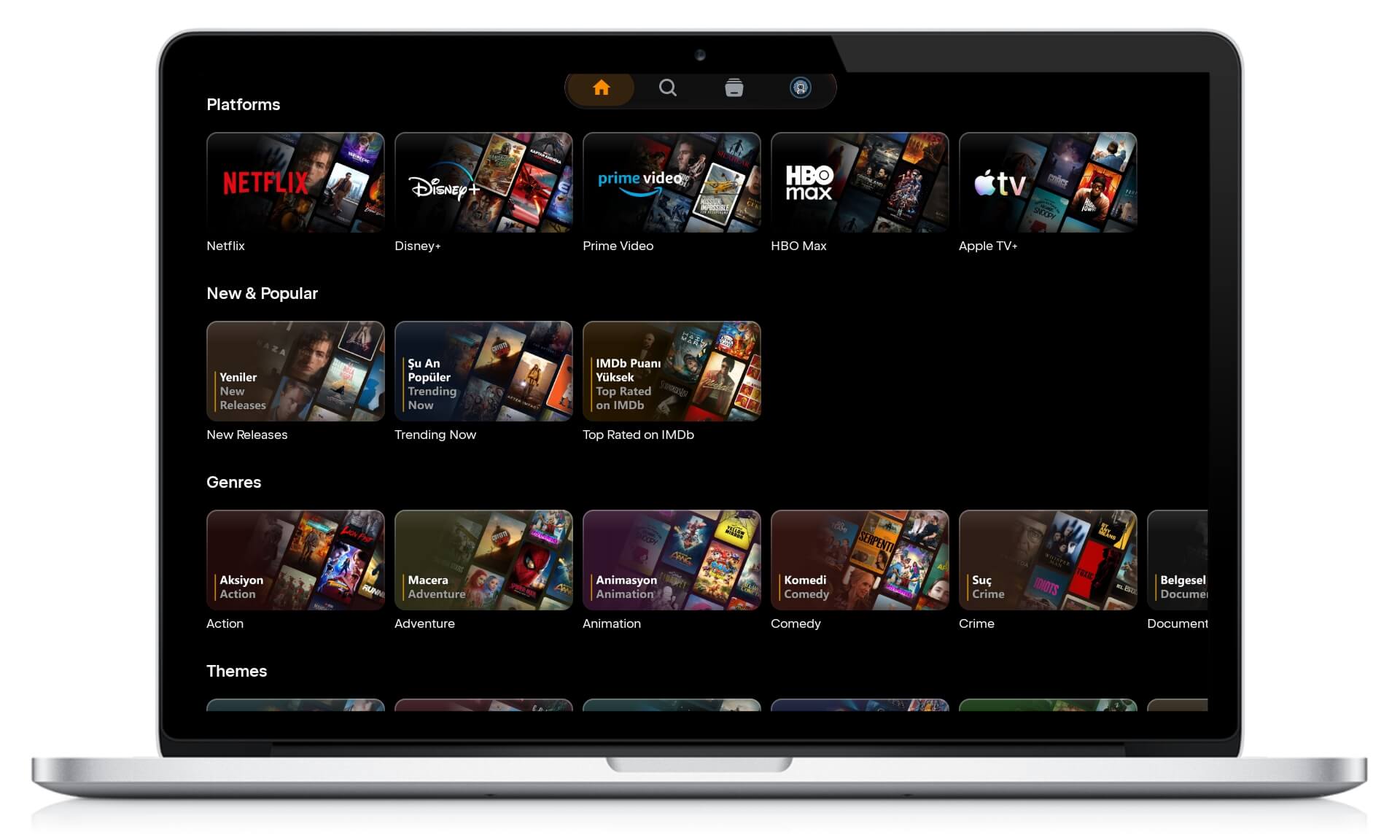
A Nuvio collection only changes how your home screen is organised. There are two ways to add one, and both happen on the Nuvio website, not inside the app.
Before you start
- You need a Nuvio account, because collections are stored in your profile and sync to your devices.
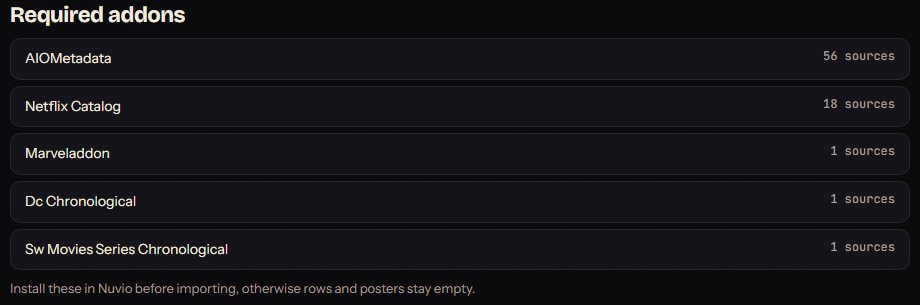
- Check which addons the collection needs. If it uses AIOMetadata, set that addon up first, otherwise posters and metadata can go missing.
- A collection contains no streams. You still need your own addons for playback.
Method 1: open it in Nuvio
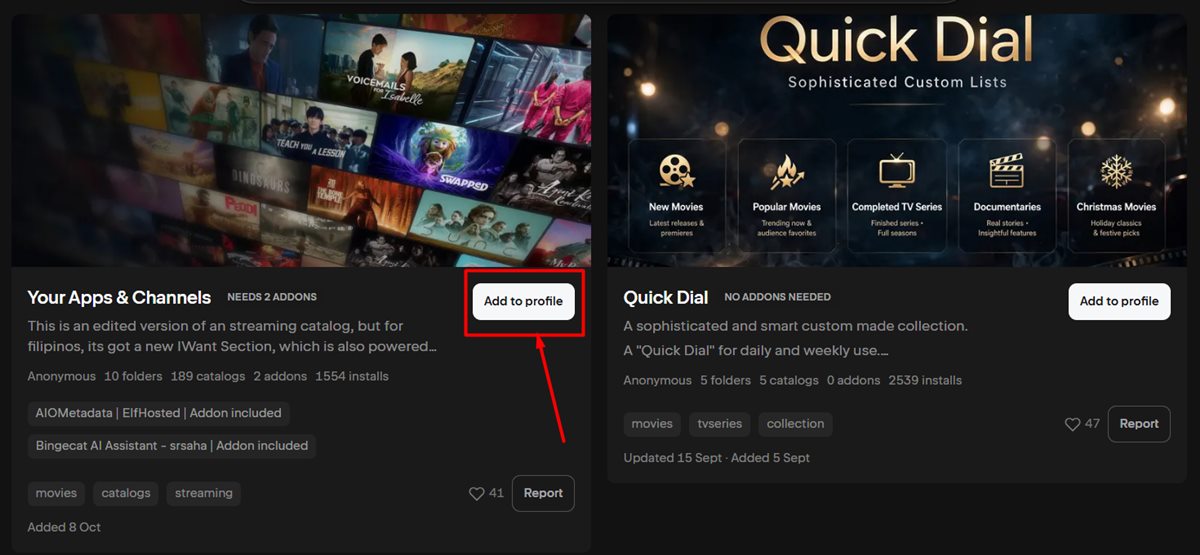
Use this for any collection with an Open in Nuvio button on this site. It is the quickest way.
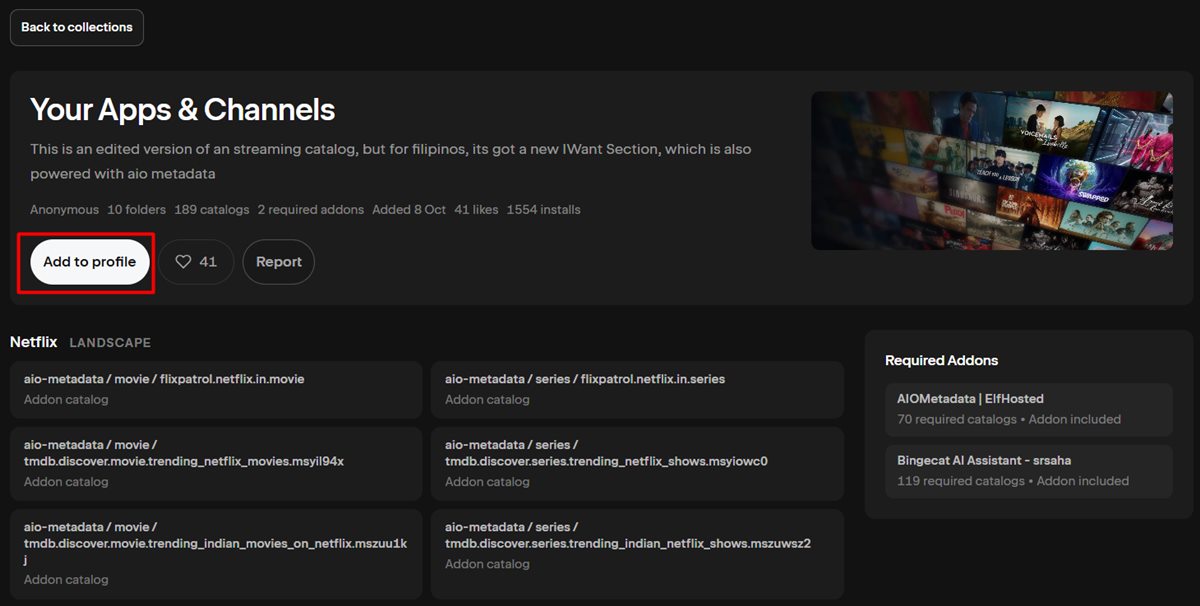
- Press Open in Nuvio. This goes straight to that collection’s page on nuvio.tv.
- Sign in to your Nuvio account if you are asked to.
- Press Add to profile, or Add pack for a pack.
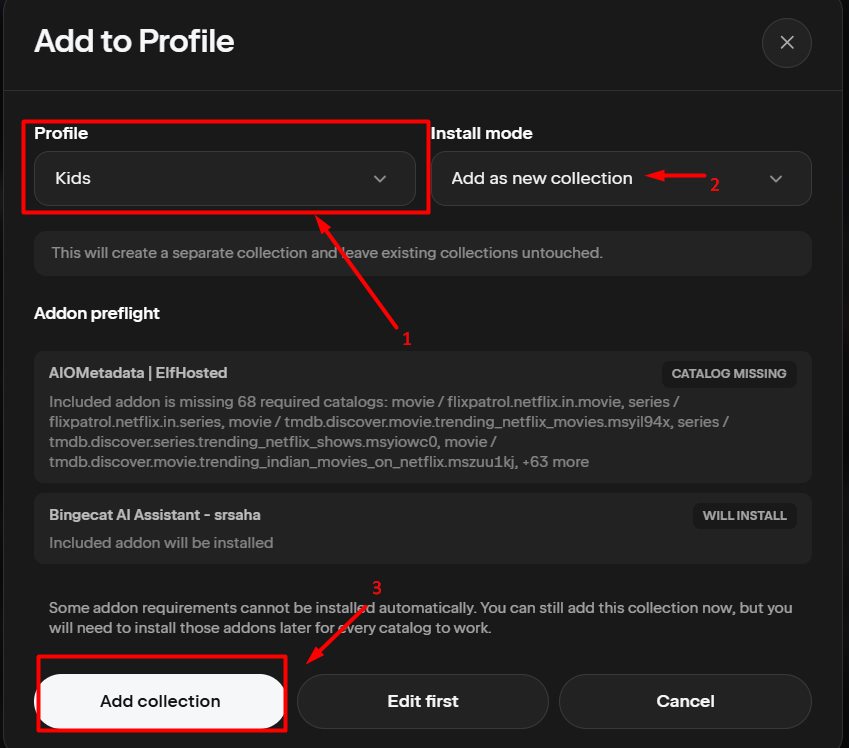
- Choose a profile and an install mode. Add as new collection leaves your existing collections untouched.
- Read the addon preflight list, which shows what will be installed and what is missing, then confirm.
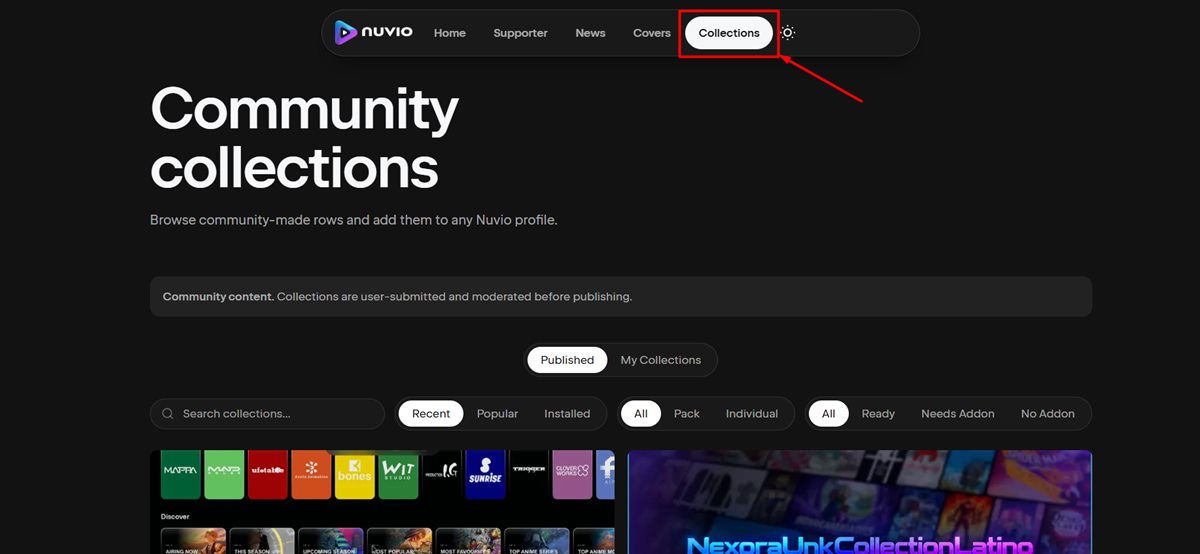
You can also browse the full list yourself at nuvio.tv/community-collections.
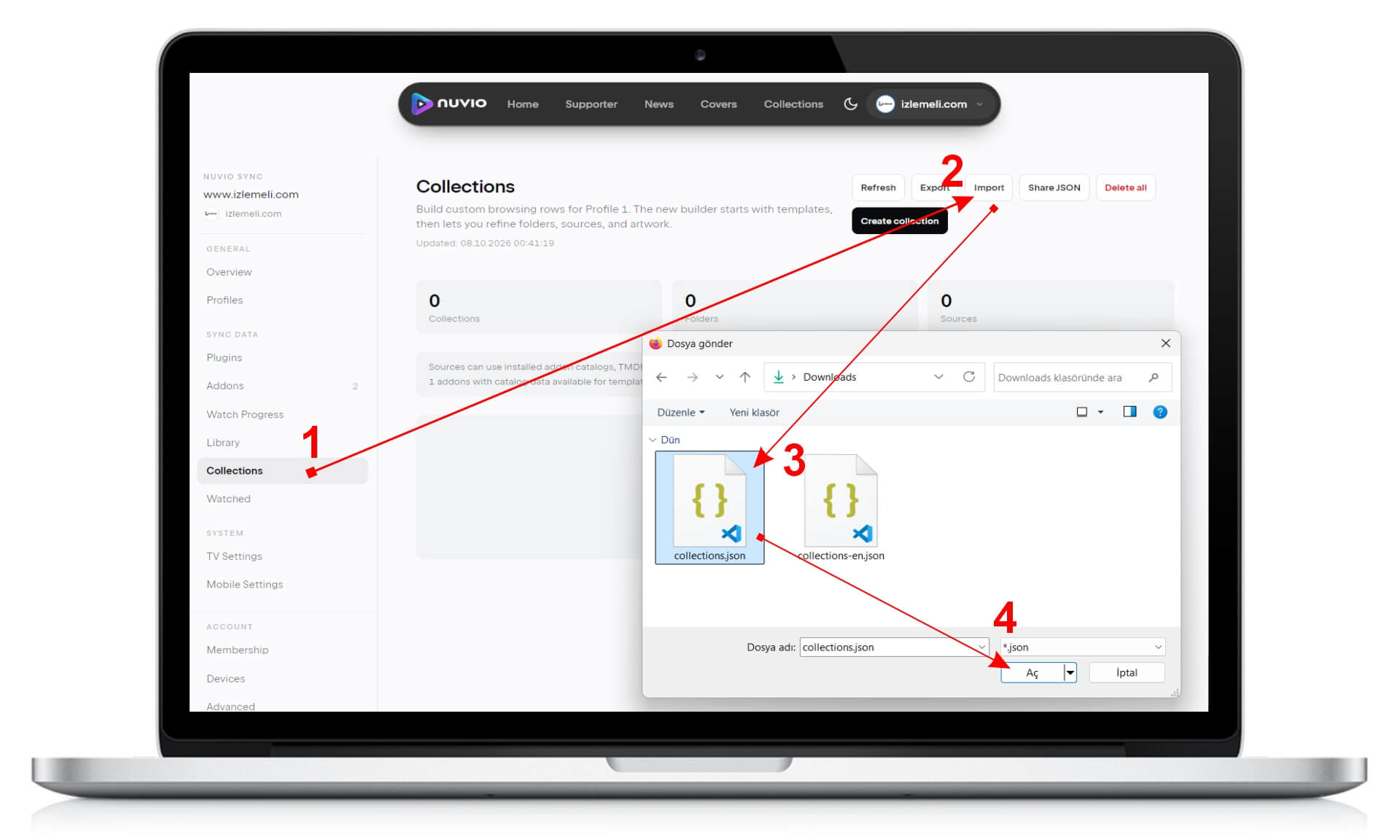
Method 2: import a JSON file
Use this for collections with a Download button, which are mostly the ones shared on GitHub.
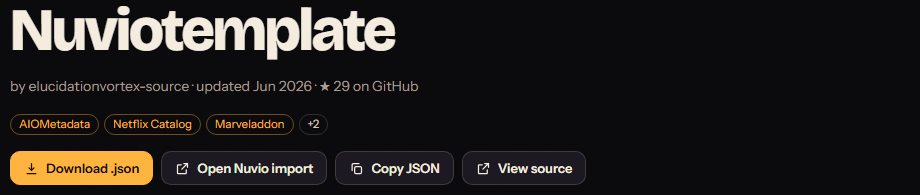
- Open a collection and press Download .json. Check that the file was saved with a .json extension.
- Sign in at nuvio.tv and open Account → Collections.
- Click Import and choose the file you downloaded.
- Pick Add to keep your current collections, or Replace to swap them out.
- Open the Nuvio app and let your profile sync.
Fixing common problems
“Invalid JSON” error
This usually means the file was saved by copying text from a rendered GitHub page, which can add formatting characters. Use the raw file instead. The Download .json button here always saves the raw file.
Rows or posters are empty
A required addon is missing or was installed after the import. Each collection page lists the addons it needs.
Everything appears twice
Using Add on a collection you already have can create duplicates. Delete the old copy from the Collections tab of your account, or use Replace.
The collection doesn’t appear on my TV or phone
Reopen the app so the profile syncs, and check that you added it to the same profile you are using. Some community repos note that the mobile apps can view collections but not import them, so do the import on the website.
Undoing an install
Open the Collections tab in your account on nuvio.tv and delete what you added. The Delete all button there removes every collection in that profile, so use it with care.
Next: see the best Nuvio collections or read the FAQ.